
GUIDE 06 Pro
Check it on your wrist.
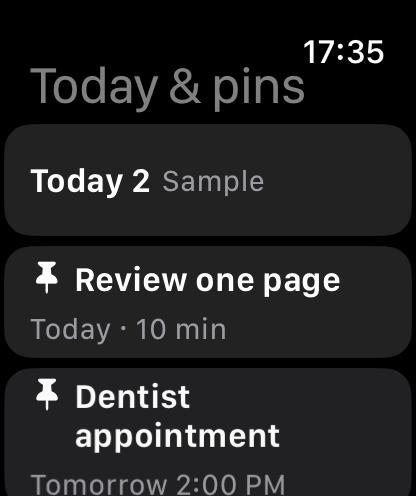
Look at a task without getting your iPhone out, and tick it off from there.
Settings → Connections and look-backs → Apple Watch
Install it on the Watch
Pair a supported iPhone and Apple Watch, then install OK Planner from the Watch app on your iPhone. Check that Pro is active.
Turn on Watch sharing
In OK Planner on iPhone, open Settings → Connections and look-backs → Apple Watch and turn on Show tasks on Watch.
Check it, and tick it off
Open OK Planner on the Watch, open a task and tap Mark done — it syncs back to your iPhone. Receiving updates and marking things done both need a connection to the iPhone.
A little more, only if you need it.
If nothing shows up
Check Pro is active, then the connection to your iPhone, then Watch sharing in the app’s settings.
In the app
Turning sharing off leaves your tasks and records on the iPhone untouched.
If this did not solve it, get in touch.