
GUIDE 03
See the day, and the gaps in it.
Before you fill a day, look at what is already in it and what is left over.
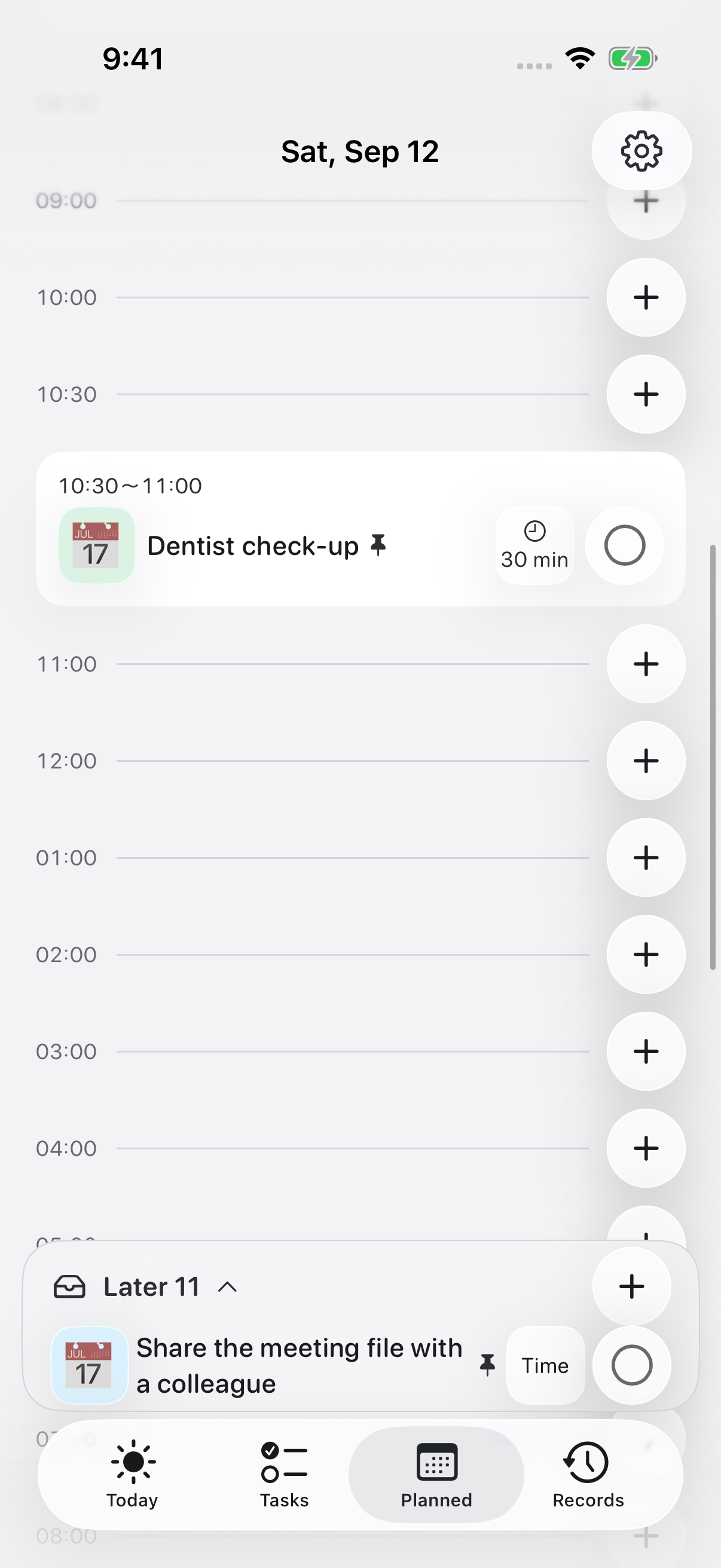
Planned, in the tab bar
Open Planned
Tap Planned in the tab bar.
Pick the day
Choose a date to see its events, along with anything that has no time set yet.
Look at the gaps
Check the time you have left. On other days it reads as free time for that day. Leave room for travel and for a break.
A little more, only if you need it.
Dropping a task into a gap
Tap Put it here on a suggested task, check the name and time, then tap Put it here again. If nothing is suggested, give your tasks a rough duration.
What free time is based on
Free time is worked out from events already in the app or synced into it. Anything you have not entered, or tasks with an unknown length, are still yours to check.
Using an external calendar
Apple and Google Calendar sync is a Pro feature. Google Calendar goes through the calendar account added on your iPhone.
In the app
Some days you only look. Rearranging can wait until you need it.
If this did not solve it, get in touch.